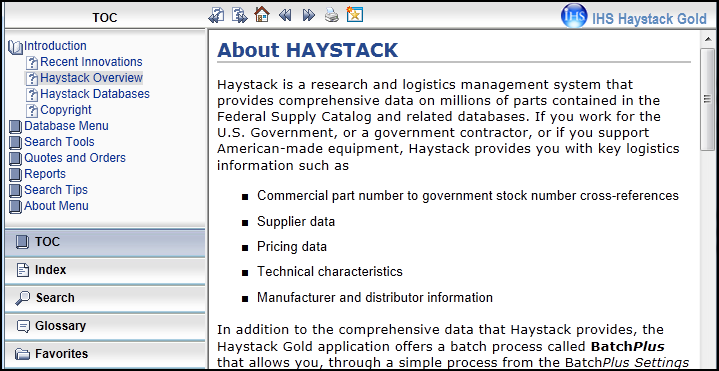
When Haystack Gold displays the WebHelp version of the Help, you see a Toolbar that contains icons for Previous Topic, Next Topic, Home, Back, Forward, Print, and Add topic to favorites to the right of TOC—the Table of Contents. In the left Navigation Pane, you see accordion bars for TOC, Index, Search, Search, Glossary, and Favorites.
If your browser is Internet 8 or later, Chrome 13 or later, or Firefox 10 or later, Haystack will display the HTML5 version of Help. See How to use the HTML5 Help Tabs and Search for more information.
From any page in Haystack, you can see the Toolbar above the page and move your mouse over an icon to see a short description. Click the icons to perform the associated function.
The list below names and describes the icons in the Toolbar.
There are seven icons in the Toolbar that take you to topics, print a topic, or save a favorite topic you want to refer to easily in the future.
 Previous Topic Previous Topic |
Takes you to the previous topic listed in the Table of Contents. |
 Next Topic Next Topic |
Takes you to the next topic listed in the Table of Contents. |
 Home Home |
Takes you to the starting window, Welcome to IHS Connect. |
 Back Back |
Takes you to the topic you were viewing previously. |
 Forward Forward |
Lets you open the next topic in a previously viewed sequence. |
 Print Print |
Lets you open the Print dialog so you can send the open topic to the printer. |
 Add topic to favorites Add topic to favorites |
Adds the active topic to the Favorites pane so you can quickly access the topic in the future. See the Favorites heading below. |
The left Navigation Pane contains accordion bars for the TOC—Table of Contents, Index, Search, Glossary, and Favorites. When you click a bar, the features for that particular item are displayed in the window pane.
The Table of Contents lists the main and subtopics about Haystack in a sequence that progresses from an overview and general information to specific information about the tabs, windows, functions, and features in Haystack.
The Index lists keywords in alphabetical order that are linked to the topics that discuss the keywords. You can begin typing a keyword in the search box at the top of the Index, and Haystack will move your keyword to the top of the list.
Each keyword is a hyperlink to a topic(s). If a keyword is linked to more than one topic, Haystack will display a list of topics in a pop-up box so you can select the one you want to view.
The Search accordion bar opens a Search field and icon. Enter a keyword into the search field, and then click Search. If you want to save the Search so you can use it again in the future, click the Add search string to favorites icon, and Haystack will add it to the Favorites pane. See the Favorites heading below.
Move the mouse over the graphic to expand it.

The Glossary lists over 1000 terms in alphabetical order. When you click a term, a pop-up window appears with the definition of the term.
Keyword searches that you save using the Add search string to favorites icon on the Search bar and topics that you send to Favorites by clicking the Add topic to favorites icon on the Toolbar are saved to the Favorites pane where you can reselect them.
In the following graphic, we see the "FLIS search" term and two previously saved searches, and we see three saved Favorite Topics.

Click a favorite search to open the results in the Search pane.
Click a favorite topic to open the topic in the right pane.